Pick a plan
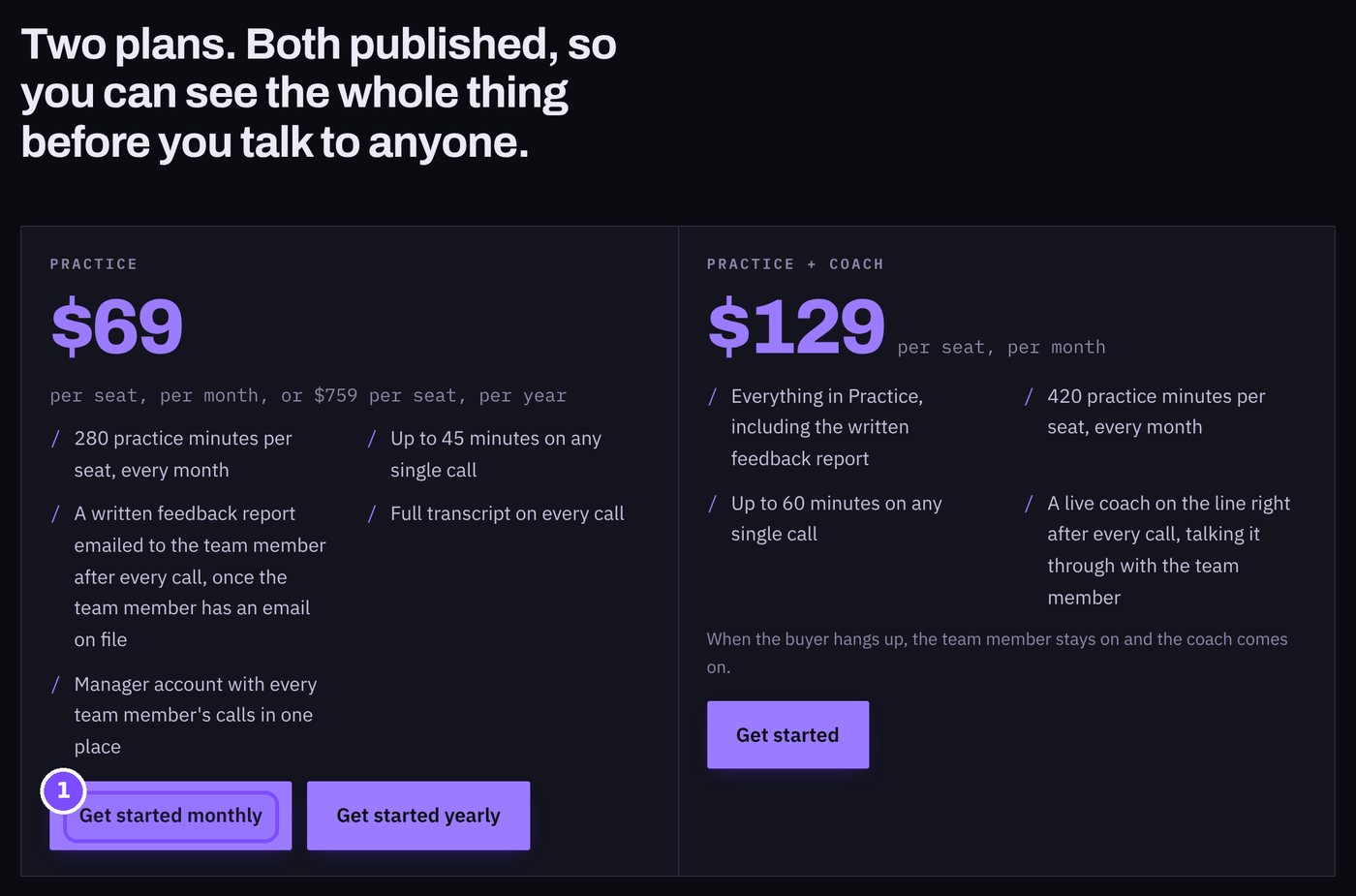
Every plan is priced per seat. A seat is one person who practices.
- Press Get started monthly or Get started yearly under the plan you want.
 VoiceReason.AI
Everything from your first click to your team's first coaching report, with the real screens. Follow it top to bottom the first time, then jump to the page you need.
1Purple numbers in each picture match the numbered steps beside it. Tap a picture to see it full size.
Prices are per seat. A seat is one person who practices. Sales tax is added at checkout.
| Product | Plan | Price | Practice minutes | What you get |
|---|---|---|---|---|
| Sales Coach | Starter | $29 / month | 90 a month | Practice the call, then the AI coach talks it through. |
| Sales Coach | Standard | $69 / month | 240 a month | Practice the call, then the AI coach talks it through. |
| Sales Coach | Pro | $129 / month | 480 a month | Practice the call, then the AI coach talks it through. |
| Interview Coach | Starter | $29 / month | 90 a month | A smaller plan to try it out. |
| Interview Coach | Standard | $69 / month | 240 a month | For a serious job search. |
| Interview Coach | Pro | $129 / month | 480 a month | The most minutes, at the lowest price per minute. |
Part 1
Pick a plan, make your account, confirm your email, then check out. It takes about five minutes. Have a code from us? Enter it at checkout. The page shows the trial terms before you start.
Every plan is priced per seat. A seat is one person who practices.
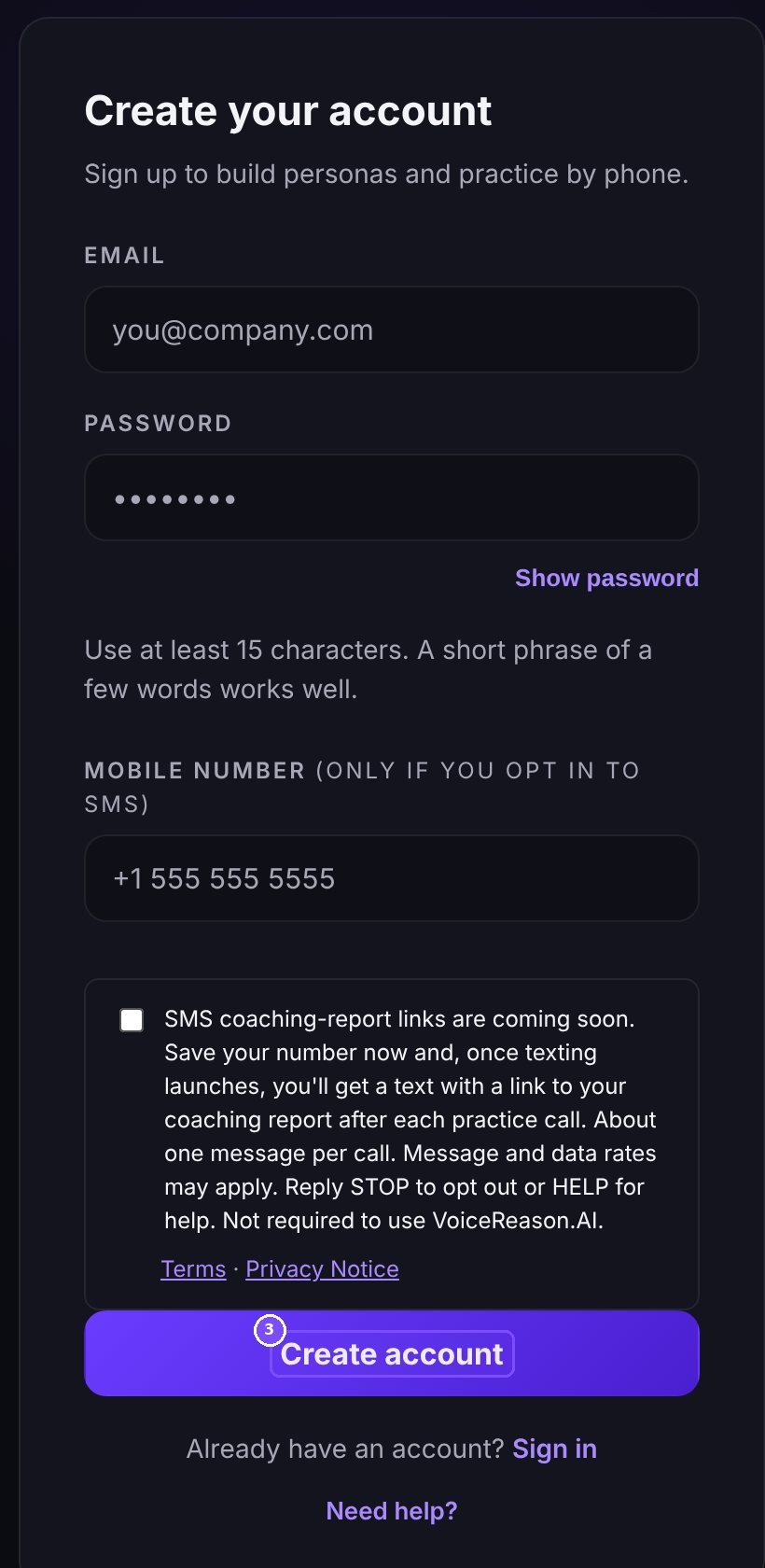
Use your work email. Your password needs at least 15 characters; a short phrase of a few words works well.
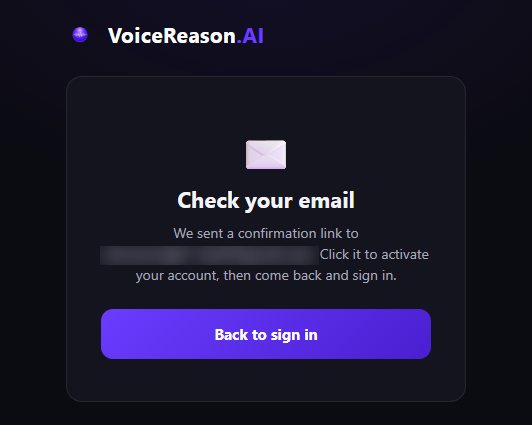
We send a confirmation link to the address you used.
No email after a few minutes? Check spam, then write to hello@voicereason.ai.
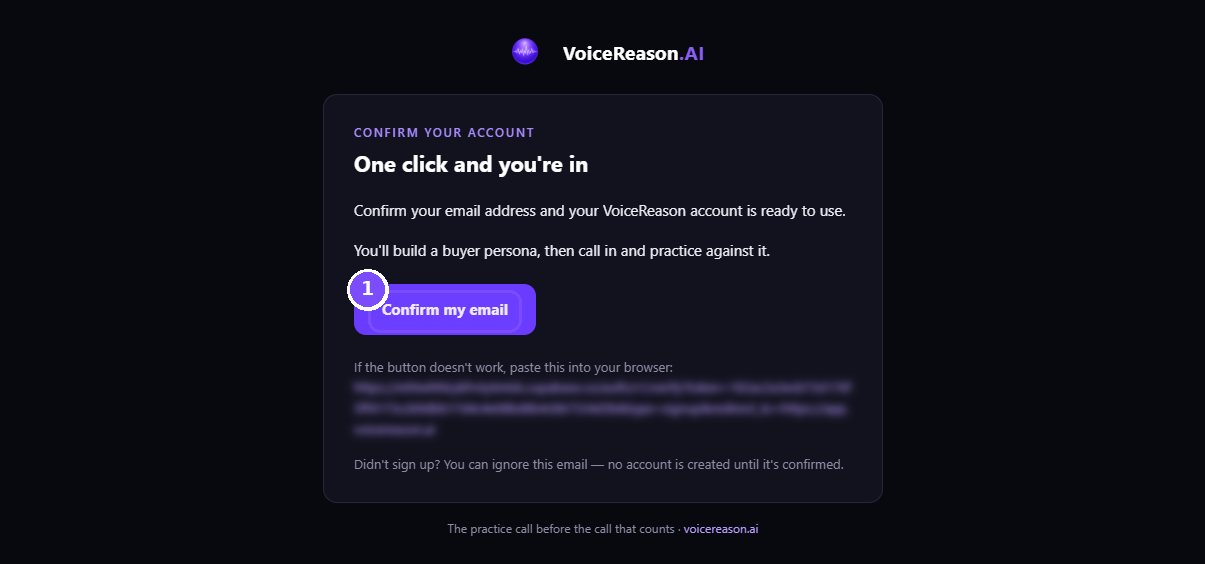
One click turns your account on.
Checkout shows all three plans side by side.
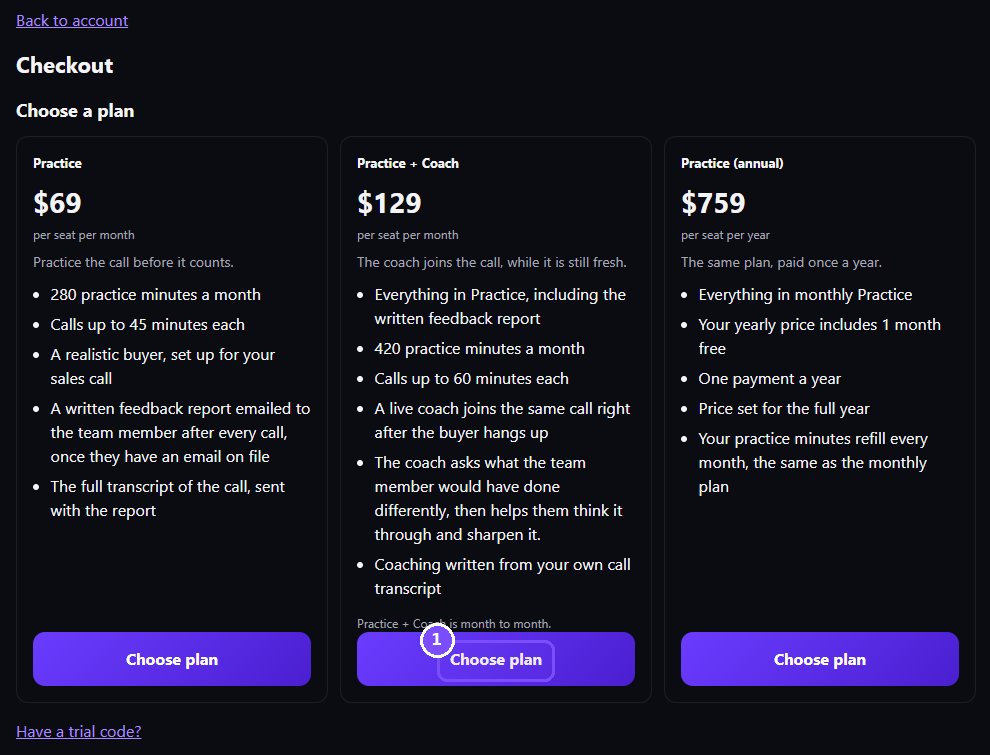
Payment is handled by Stripe. We never see your full card number.
Check the top left before you pay. It shows what you owe today and what you pay each month after.
Part 2
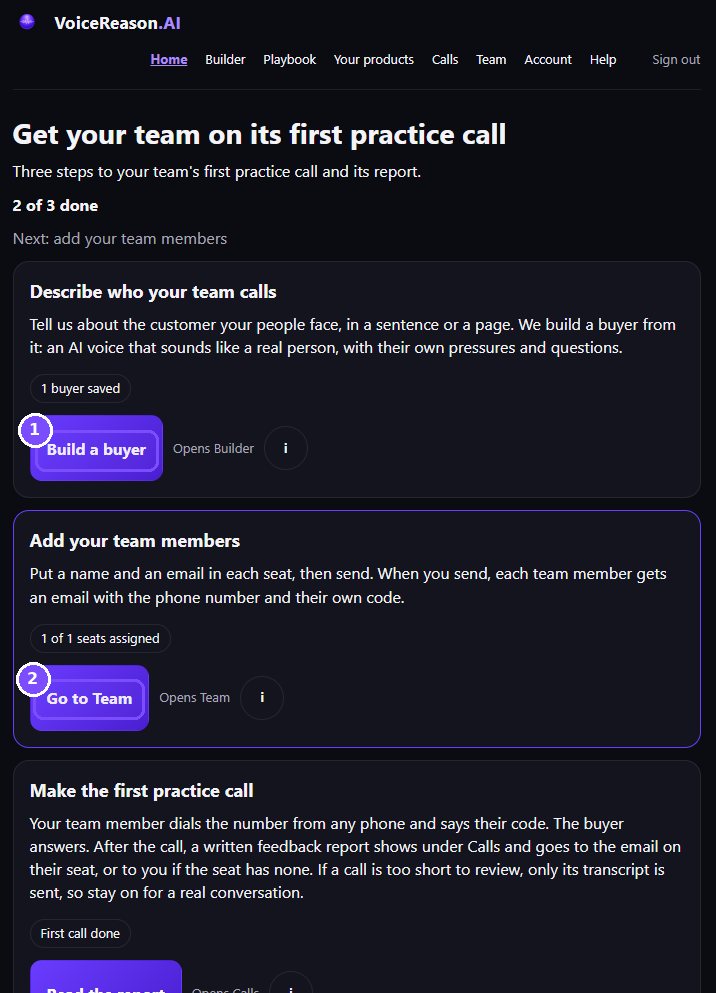
Home walks you through setup. Each card says which page its button opens, and the count at the top shows how far you are.
Describe your buyer, add your team, then make the first practice call.
Part 3
Your buyer is an AI voice your team calls. Describe the kind of person your people really talk to, and we build a realistic composite. It is never a real person.
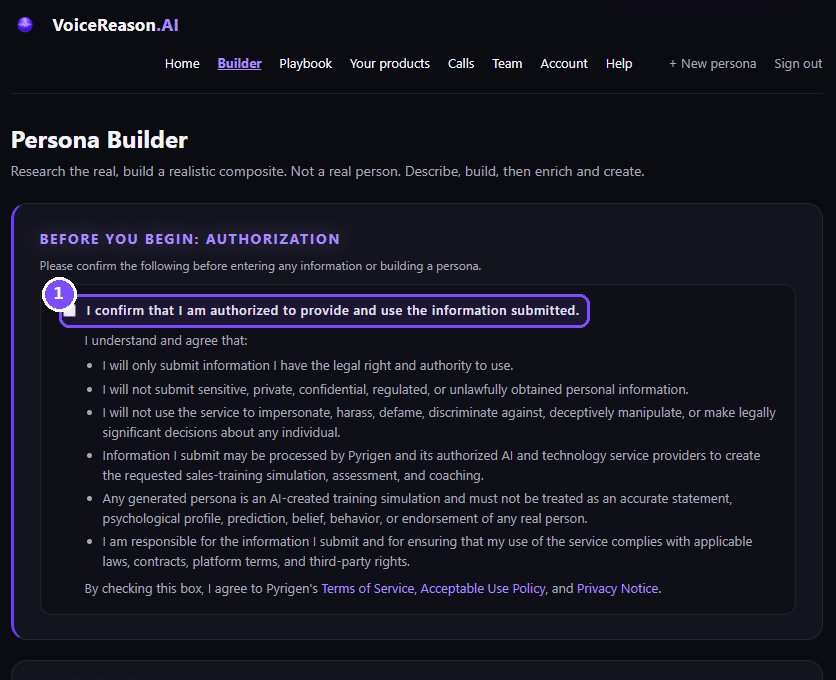
Before you start, read and tick the box. Only share information you have the right to use, and nothing sensitive or private.
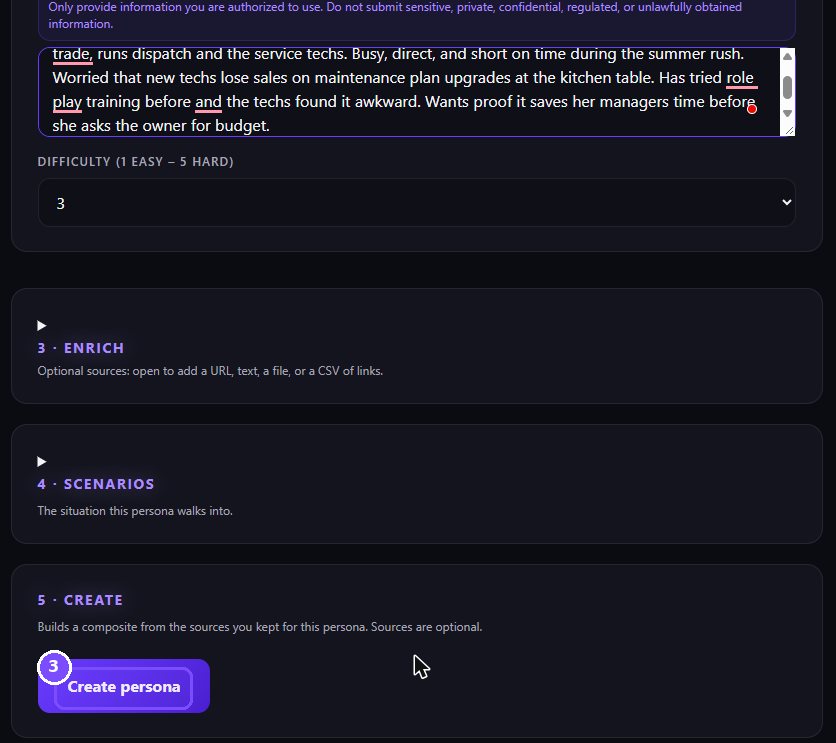
Write a sentence or a page: their job, their company, what keeps them busy, what makes them push back. Pick a difficulty from 1 (easy) to 5 (hard).
Building takes about a minute.
You get a full profile: name, role, company, background and how they talk. The note at the top is a reminder that this is a made-up person.
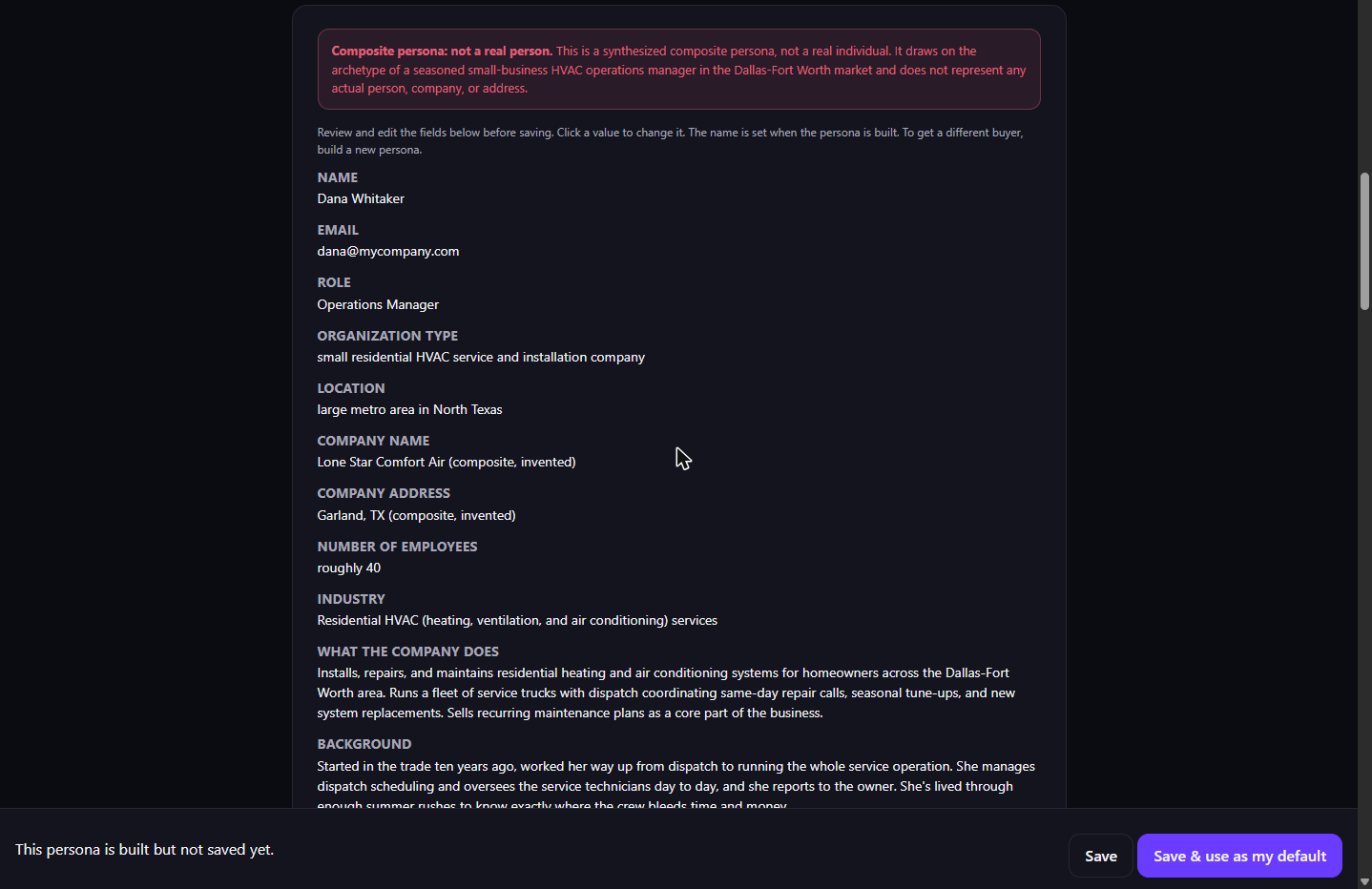
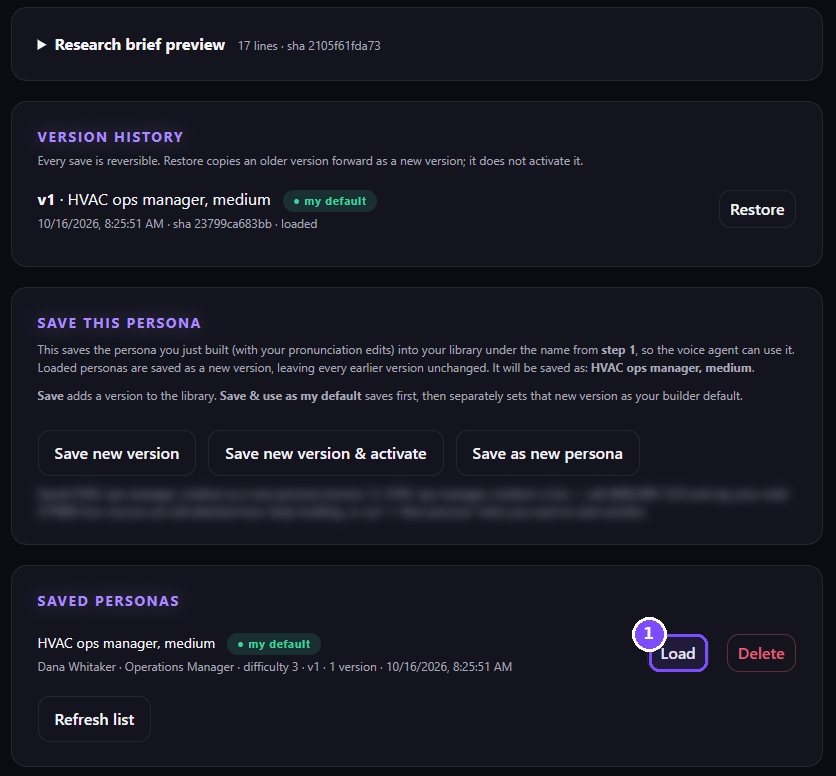
Every save is kept. You can load an older version, make a new one, or switch which buyer your team calls.
Part 4
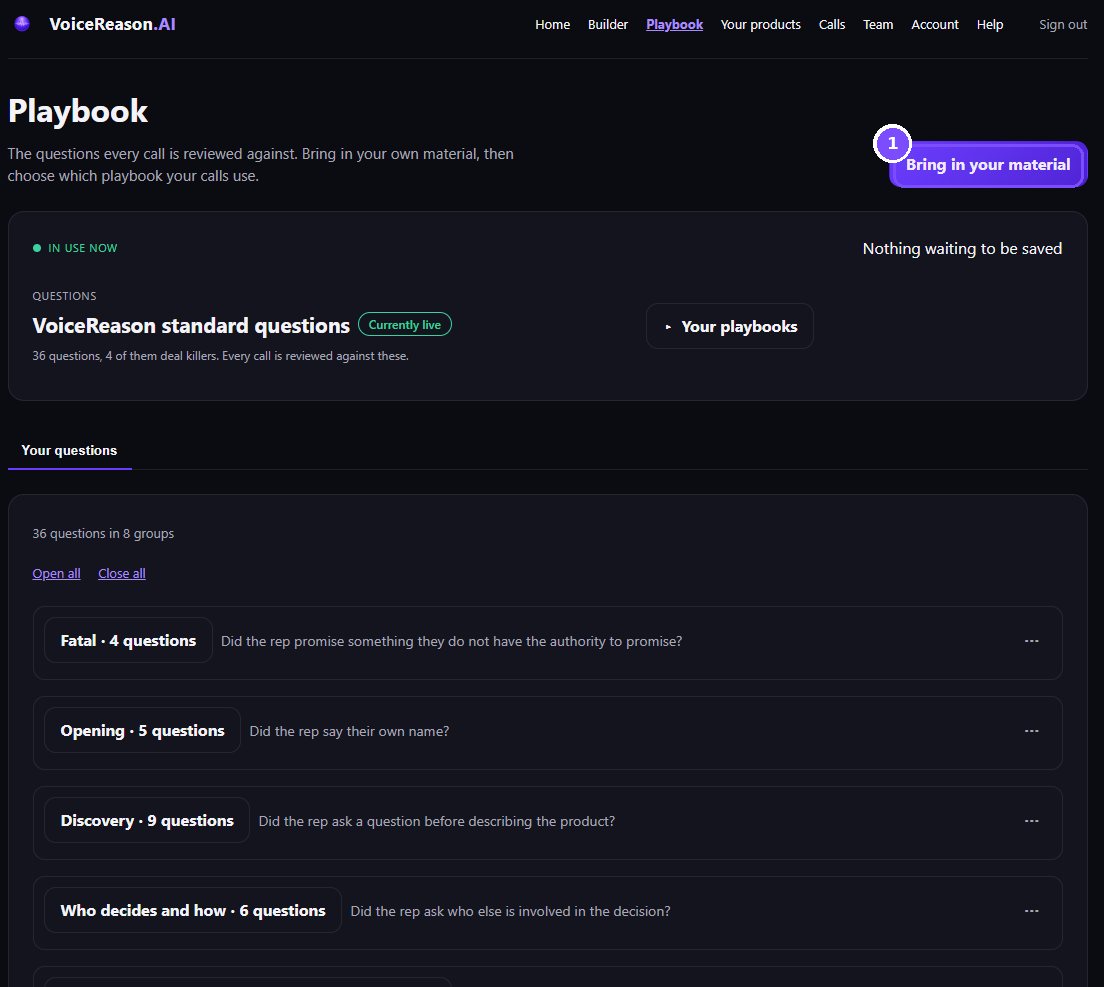
Every call is reviewed against a set of questions, such as: did the rep say their own name? You start with the 36 VoiceReason standard questions. You can bring in your own sales method later.
Open any group to read its questions. Groups marked Fatal are the deal killers.
Part 5
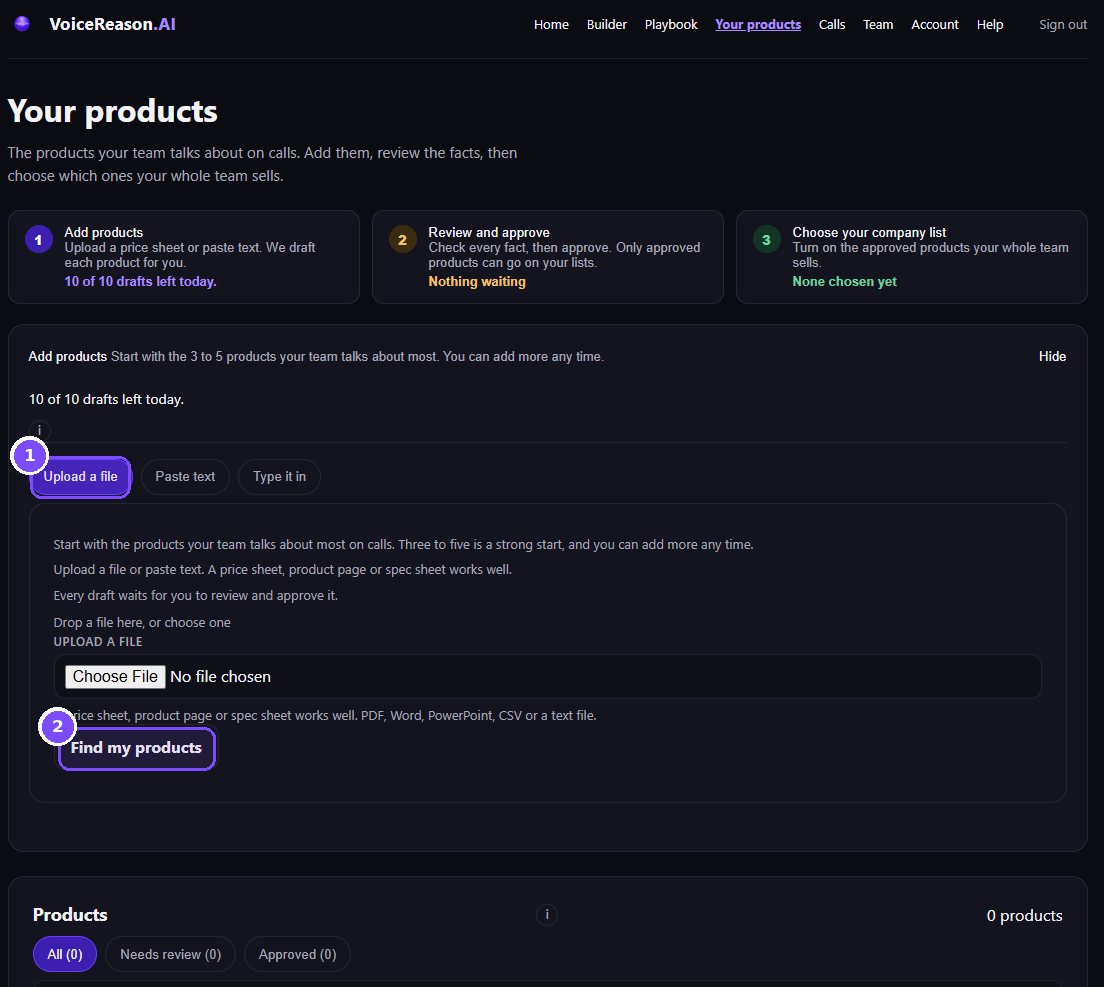
Add the products your team talks about, so the buyer and the report know them. Start with three to five.
Upload a price sheet or product page, paste text, or type it in. We draft each product for you. Every draft waits for you to check and approve it.
Part 6
Each seat has its own access code. Your team member calls the practice number and says their code. There is nothing to install and no sign-in.
Type their name and the email where their reports should go.
Leave the email empty and their reports come to you instead.
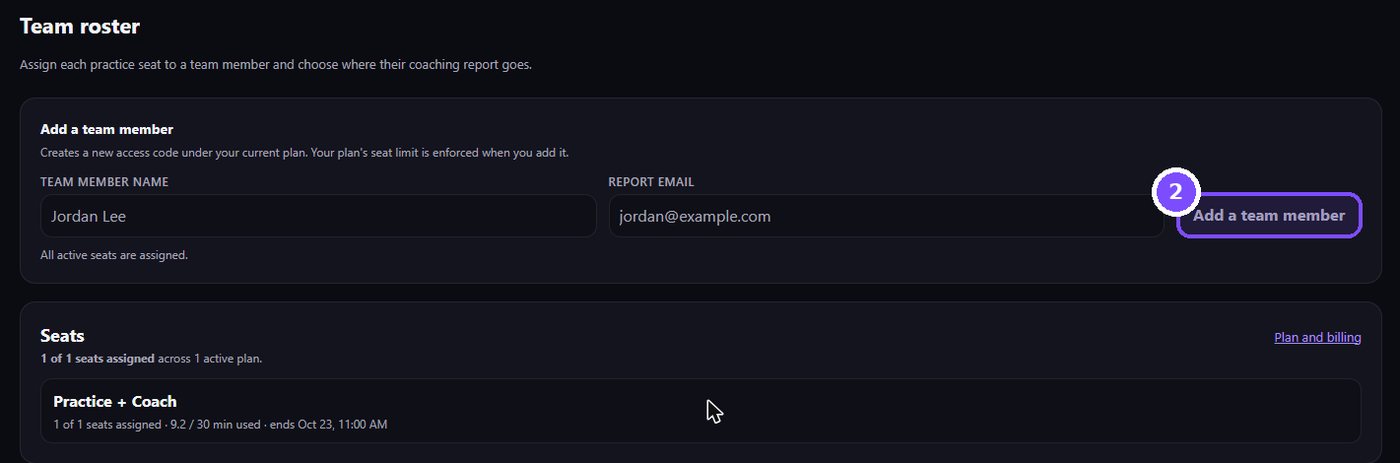
Each seat shows its plan, its minutes and its code (hidden until you press Reveal).

When you have several seats, send them all in one step.

Part 7
Good to know
Part 8
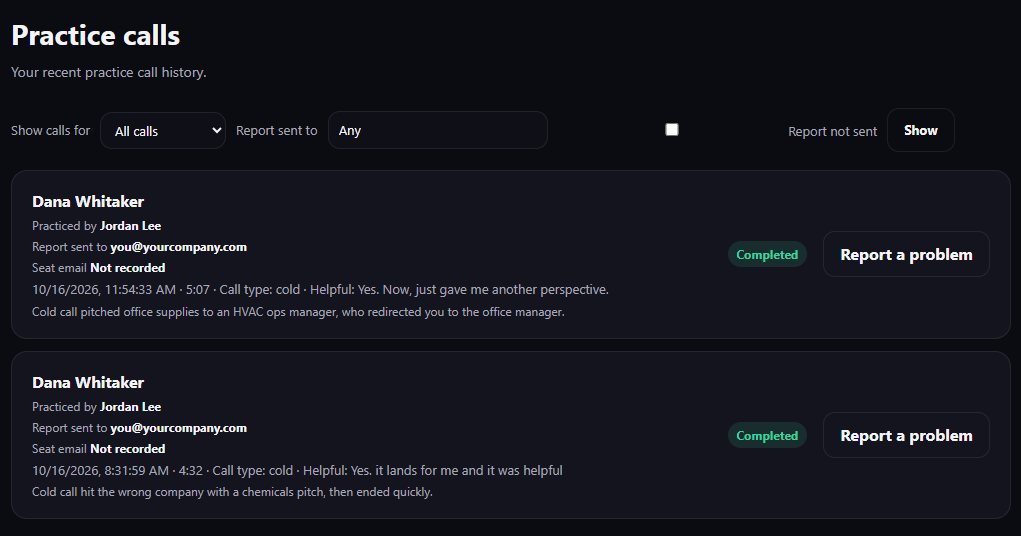
Every call shows up under Calls. The written report arrives about a minute after hanging up, here and by email.
Each call shows who practiced, where the report went, the length and a one-line summary.
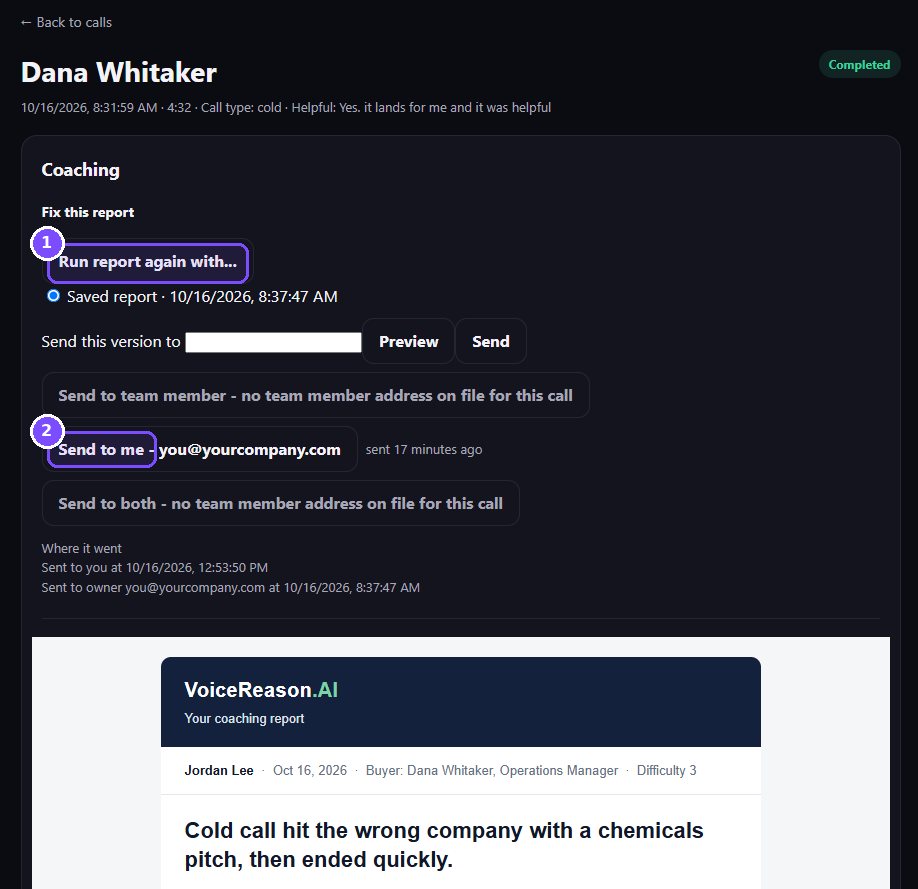
The call page holds the report, the scorecard and the full transcript.
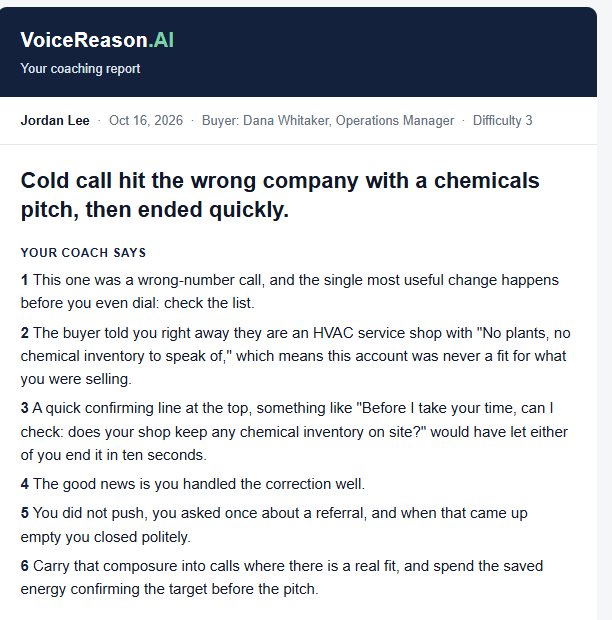
It starts with one line on how the call went, then what the coach says, what went well, and what to work on next.
Part 9
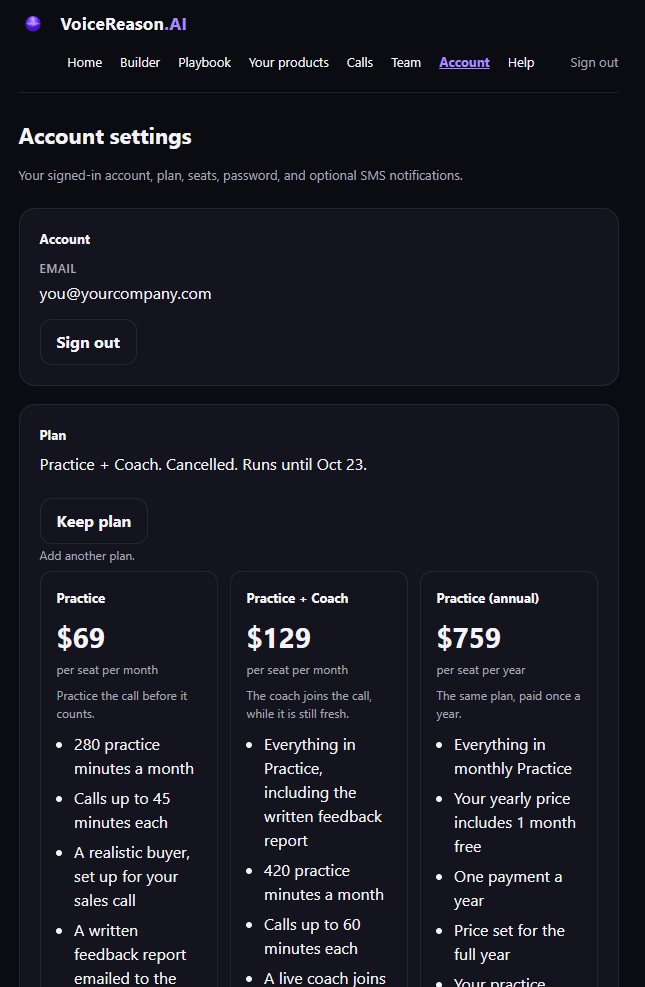
Account shows your plan, when it renews or ends, your seats and how many minutes are used.
On a trial you will see the end date and the minutes left. You can start your paid plan early or cancel here.
After you cancel, you are not charged again. Your plan keeps working until the end date.
Part 10
Call or write any time. Have the email you sign in with ready.
Phone
(945) 26-COACH
hello@voicereason.ai
Quick answers
The email saved on that person's seat. If the seat has no email, the report comes to you. You can also send any report again from the call's page.
The call was too short to review. Stay on for a real conversation and you get the full report.
Yes. Build or load a buyer in the Builder and save it as your default. New calls use it.
No. They call the practice number and say their code. Only you sign in.
Yes, until the end date shown on Account. Press Keep plan if you change your mind.